


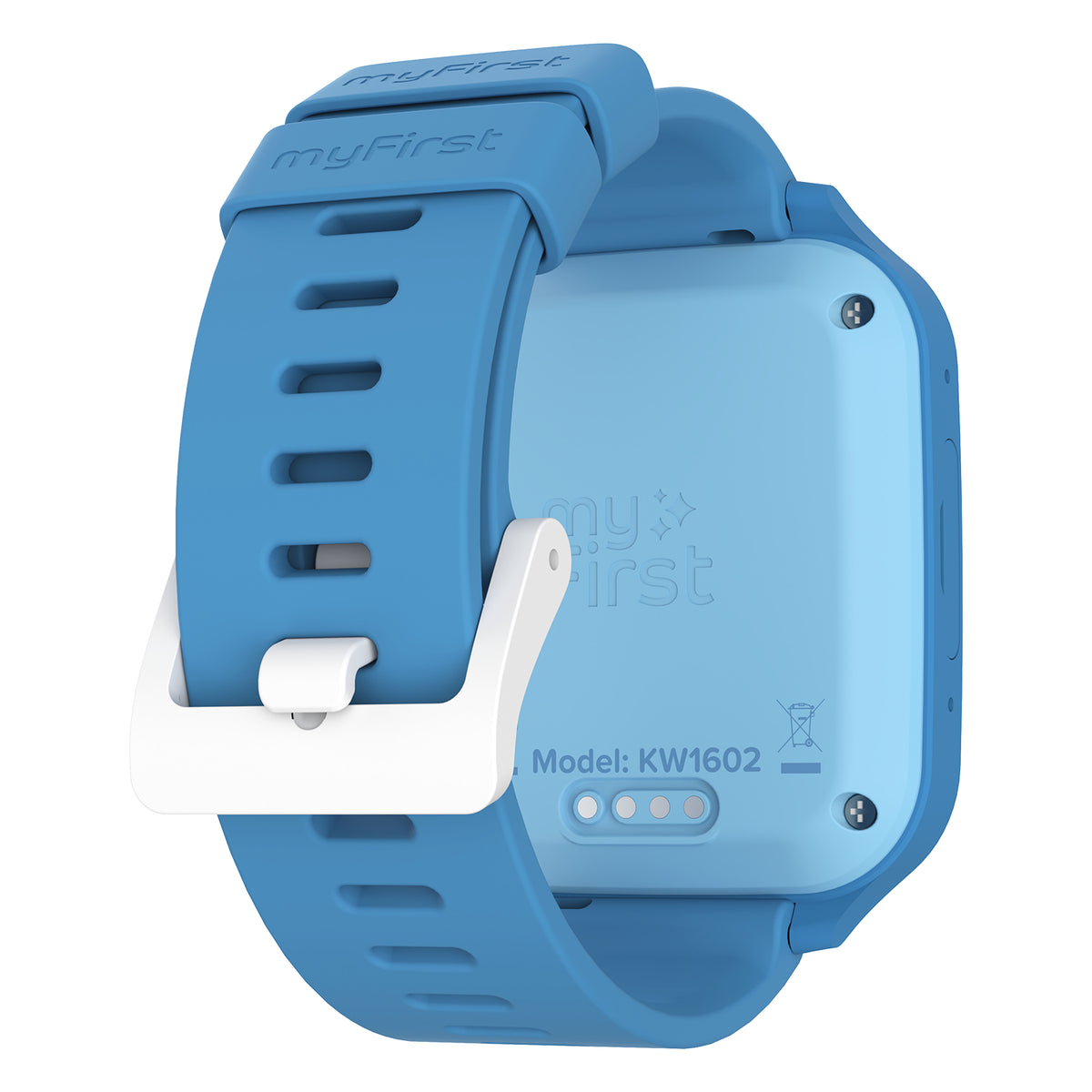


myFirst Fone M1
M1 · Nano SIM | M1c · Built-in SIM — Availability varies by region.

A Bigger View of Their Day.
Room to Roam. Reassurance Included.
The M1 gives kids room to do their thing, with safety features that help parents stay informed without having to hover.

Precise GPS Tracking
GPS, A-GPS, and Wi-Fi positioning help you see where they are through myFirst Circle.

Out-of-Bounds Alerts
Set safe zones around school, home, or anywhere that matters. You'll know when they enter or leave

One-Touch SOS
One press sends an emergency alert with their location and a 30-second voice message to parents.

Approved Contacts
You choose who they can communicate with. Their people, not random people.

No Unsafe Apps
No app store, no social media, no endless scrolling. Just the features they need, without inviting the whole internet onto their wrist.

Class Mode
Class Mode keeps distractions out of the way during school hours while SOS stays available. School has enough going on already.

Voice and Video Calls
Always Stay Connected

SIM Options

Safe Messaging
The Extras They'll Actually Use
The things that make it feel less like a safety device and more like their watch. Funny how that helps.

Music on Their Wrist
Store up to 1,500 songs and pair the M1 with wireless headphones. With myFirst headphones, a safe volume limit helps keep listening kid-friendly. Their soundtrack, no phone required. Availability varies by region.

Keep Moving
A built-in step counter tracks daily activity and gives them one more reason to move. Every step counts. Even the ones to the snack cupboard.

Make It Theirs
Wallpapers, colourful straps, and alarm tones let them put their own spin on it. Because if they chose it, they’re much more likely to wear it.

All Day, Every Day
A 730 mAh battery is built for all-day use, so it can get through school, after-school, and whatever happened to the schedule after that.
Up and Running in Four Steps
Setup takes just a few simple steps.

Step 1:Get the App
Download myFirst Circle from the iOS App Store or Google Play. Create a parent account and a child account.

Step 2:Activate SIM Card
M1: Insert your nano SIM and activate with your carrier. M1c: Visit myfirst.tech and activate your myFirst SIM subscription.

Step 3:Bind the Watch
Turn on the M1 and follow the in-app instructions to pair it with your parent and child accounts. Once it's connected, it's theirs.

Step 4:Ready to Go
Set safe zones, approve contacts, and give them room to explore. You'll know where they are. They'll get on with their day. Both true.

Learn more about myFirst Watch M1


Warranty, Returns & Support
Buy With Confidence

Parts & Defects Covered

Refund & Exchange

Fast Delivery

Buy Direct From myFirst

We're Here to Help
